Posts RSS Comments RSS 133 Posts and 258 Comments till now

Archive for May, 2007

How To Setup VPN In Your Office and Access It From Home.

VPN stands for Virtual Private Network. Why do we need VPN in our office? Most of the time, because people have their file server in the Office. And they want to retrieve their files to enable them to work from home.

Isn’t that dangerous?Well, with a sufficiently strong password, the VPN should be difficult enough (too expensive in terms of time and effort) to crack.

OK, what are the requirements? Basically if you have Windows XP, you are good to go. Please note that Windows XP SP has limited connection. Check this article on how to remove the limitation. It would be better if you use your Windows 2000 Server/Windows 2003 Server as the VPN server since they are optimised for concurrent network access.

Since most companies that has Windows Server (be it 2000 or 2003) is likely to employ someone with network knowledge to maintain the network, I’ll dedicate this guide to those small/medium company that using Windows XP/2000 Professional as their File server.

Assuming you are using Windows XP. Follow the following steps:

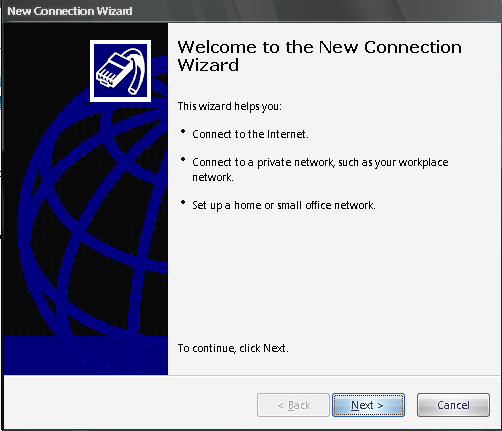
  1. Go to New Connection Wizard (Start - Settings - Network Connections - New Connection Wizard), and then click Next.
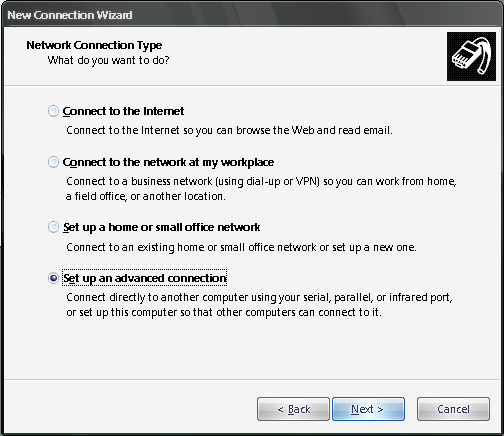
  2. Select ‘Setup an advanced connection’, and then click Next.
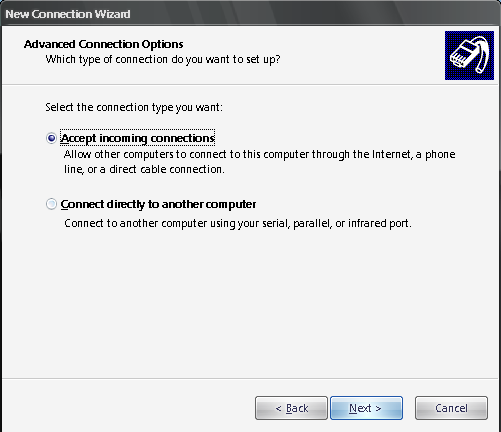
  3. Select ‘Accept Incoming Connection’, and then click Next.
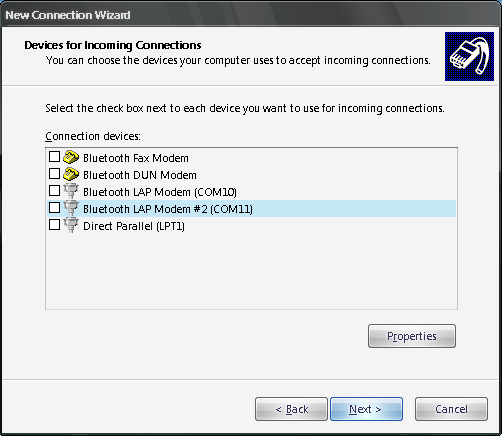
  4. Un-select any selected connection, and then click Next.
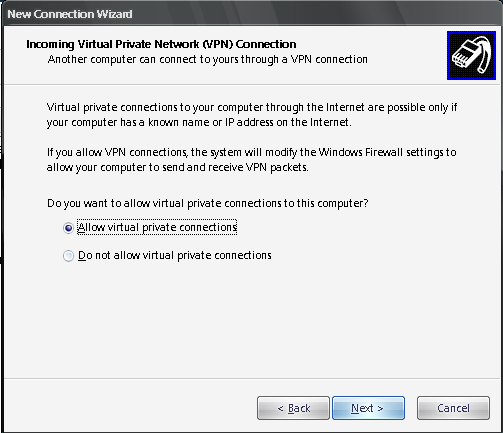
  5. Select ‘Allow virtual private connections’, and then click Next.
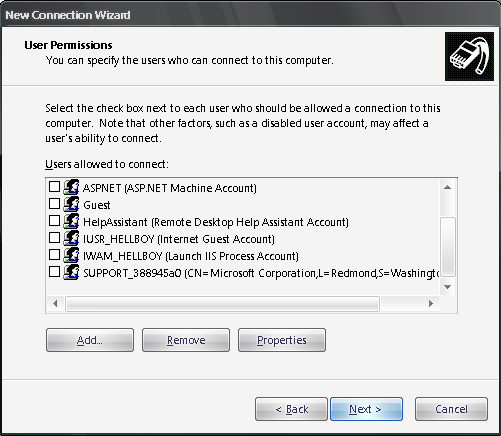
  6. Select the user(s) that have access to VPN. PLEASE make sure they have a STRONG PASSWORD. What is strong password? The length should at least 8 characters. It has small caps character(s), capital character(s), numeric character(s) and non-alphanumeric character(s) such as #,$,@,&, etc.
  7. Click Next. By default the TCP/IP address will be using DHCP. It means any computer connected through VPN will receive IP address automatically just like any other computers in your network. Please make sure your network router has DHCP server running.
  8. Click Finish

Wait, don’t celebrate first (^_^). The VPN is now up and running, but how will user from home discover it? I will assume you’re not using static IP. To check whether you’re using static IP or not, please go to your router (192.168.0.1 or 192.168.1.1) and look for ‘Status’ or ‘Network Status’.

So what to do if we have non-static IP? I suggest you to register and download those Dynamic DNS forwarding service. You can search google for ‘Dynamic IP’. Basically these services will give you a domain name, and program to be run inside your network. I recommend it to be installed in the VPN server. The program will periodically update the IP address in the ‘Dynamic IP’ server. Thus, whenever users request for the domain you’ve registered, they will be transferred to your IP address (i.e. your office).

Next is to open your firewall port. Login to your router, look for ‘Port Forwarding’ or ‘Application and Game’ menu (usually they are located in the advanced settings). Forward TCP port 1723 to your VPN server.

Basically that’s all the steps to set up VPN in your Office. Questions?

How To Access VPN from Home

Now that your office has VPN service up and running, it’s your turn to set your computer to connect to your office network. Please follow the following steps:

  1. Go to New Connection Wizard (Start - Settings - Network Connections - New Connection Wizard), and then click Next.
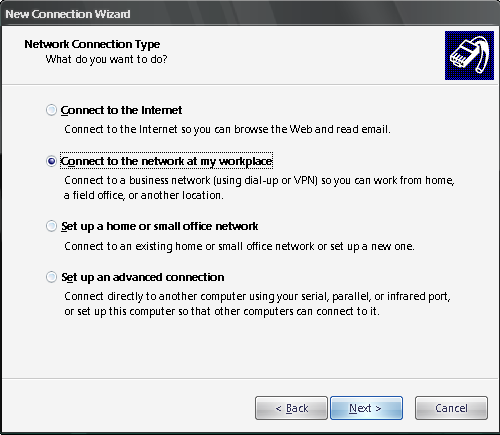
  2. Select ‘Connect to network at my workplace’, and then click Next.
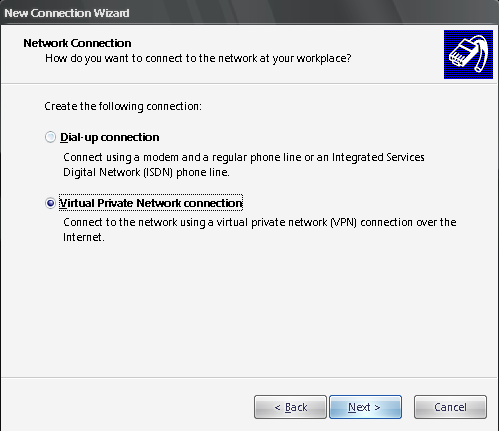
  3. Select ‘Virtual Private Network connection’, and then click Next.
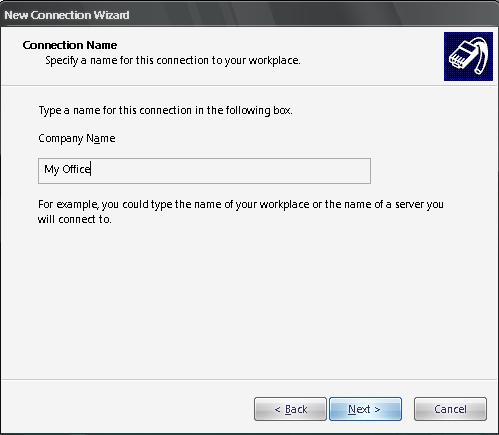
  4. Type something for the connection name, and then click Next.
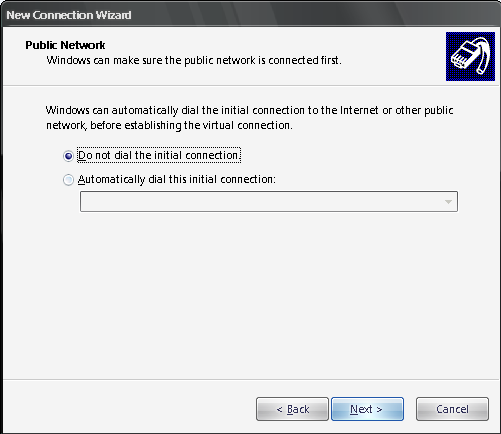
  5. Select ‘do not dial the initial connection’, and then click Next.
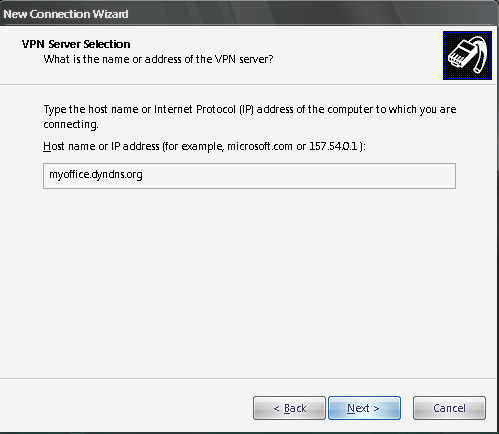
  6. Type the address that you’ve registered for your company, and then click Next.
  7. Click Finish

So now how to connect to the office? Go to Start-Settings-Network Connections - My Office. It should open the following window:

Type the username and password, the username should have been given access to the VPN service
There you go. You should be able to connect to your office and access the fileserver using the usual ‘\\fileserver’

Troubleshooting

  1. I manage to get connected, but I am unable to access the network. Answer:Check your VPN Server’s Network TCP/IP settings. Make sure the Gateway, DNS and WINS points to your router IP address.
  2. You have trouble setting your VPN? Post comment and I’ll try my best to answer it.

Cooperative, A Lesson To Be Learned from NTUC Income

I was absent from blogging for quite some time. The main reason would be my new job at NTUC Income. As of this month, I am working there as a Software Developer.

Let’s not dwell on my personal excuse (^_^)v for not blogging. During the first day orientation in my new workplace, there was this session which the new staffs are lectured on the Cooperative values and principle. Initially, when I looked at the orientation schedule, I thought this session will be a session about working with colleagues, how to interact to other employees and Teamwork (thanks to my miserable English (T_T), I totally mistranslated Cooperative ). To my surprise, it was about the philosophical and historical lecture about NTUC Income. I was shocked and happy at the same time, knowing that my company is a Cooperative, or we Indonesians call it ‘Koperasi’.

While the lecturer was explaining the cooperative values and the history of NTUC Income, my mind wandered remembering my Elementary and Secondary school time, which was the time when I was introduced to the concept of Cooperatives as the Backbone of Indonesian Economy (’Koperasi sebagai Soko Guru pembangunan Ekonomi Indonesia’, CMMIW).

Although the concept of Cooperative is good and definitely suitable for Indonesia as most of its citizens are in the middle and lower class. I somehow become pessimistic with it. Mainly due to my own experience of the rise and fall of many Cooperatives in Indonesia. And partly due to the practice of corruption which is prominent in Indonesia.

As the Lecturer continued discussing about the cooperative values and history of NTUC Income, I feel like I was inhaling a fresh air, a very fresh one. The success story of NTUC Income, which was started in 1970 with a mere capital of SGD$1.2M and 14 part time staffs, growing and expanding, now become a huge enterprise with 1440 staffs, and asset of SGD$18 Billions, is an inspiration for me to believe again in the concept of Cooperative.

I have a really good feeling that I will love my new job dearly. Or as my Singaporean friend say ‘Die die must try to contribute …’

This is Why Blog Should Not Be Used As Diary Replacement

A girl wrote on her blog about a deceased schoolmate. She said that the death was well deserved. When she realised the insensitivity of her blog post, she decided to attend the wake to apologize to the family of the deceased, but angry teenage mutant ninja mobs attacked her outside the deceased house. Here are the Newspaper scanlations. And this is her blog.

Lesson to be learned:

  1. Blogger, in a way is similar to journalist . Although bloggers are not regulated by the journalism code of conduct, but a common sense might need to be used. Unless you are living in United States, where your freedom of speech is protected by the 2nd Amendment. But a defamation/libel lawsuit is still possible to be made against you.
  2. Blog entries are accessible to public. Whatever said in public might be used as evidence in the court of law. So please help yourself by not having any blog postings with any potential liability
  3. I really need to control my mouth (T_T) and re-checking my previous entries for any potential liability. Any comments?

How To Kill MS Excel Process Started by ASP.NET

It was a quiet Tuesday afternoon in Singapore. The sky was greyish with clouds. The air was cool with slow wind. I sat in front of my computer mindlessly seriously reading blog posts in the neighbouring blogs.

The suddenly out of the darkness his room, Buddie approached me complaining about his Web Application. His ASP.NET web application is using Interop.Excel to read data stored in XLS file. The problem is that those Excel processes are refusing to be closed, resulting tens mega bytes of memory hogged.

Just to illustrate how the Excel process is started, please take a look of the following code which shamelessly proudly copied from MSDN:

//-----------------------------------------------------------------------
//  This file is part of the Microsoft .NET Framework SDK Code Samples.
//
//  Copyright (C) Microsoft Corporation.  All rights reserved.
//
//This source code is intended only as a supplement to Microsoft
//Development Tools and/or on-line documentation.  See these other
//materials for detailed information regarding Microsoft code samples.
//
//THIS CODE AND INFORMATION ARE PROVIDED AS IS WITHOUT WARRANTY OF ANY
//KIND, EITHER EXPRESSED OR IMPLIED, INCLUDING BUT NOT LIMITED TO THE
//IMPLIED WARRANTIES OF MERCHANTABILITY AND/OR FITNESS FOR A
//PARTICULAR PURPOSE.
//-----------------------------------------------------------------------
using System;
using System.Reflection; // For Missing.Value and BindingFlags
using System.Runtime.InteropServices; // For COMException
using Microsoft.Office.Interop.Excel;

class AutoExcel {
	public static int Main() {
		Console.WriteLine ("Creating new Excel.Application");
		Application app = new Application();
		if (app == null) {
			Console.WriteLine("ERROR: EXCEL couldn't be started!");
			return 0;
		}

		Console.WriteLine ("Making application visible");
		app.Visible = true;

		Console.WriteLine ("Getting the workbooks collection");
		Workbooks workbooks = app.Workbooks;

		Console.WriteLine ("Adding a new workbook");

		_Workbook workbook = workbooks.Add(XlWBATemplate.xlWBATWorksheet);

		Console.WriteLine ("Getting the worksheets collection");
		Sheets sheets = workbook.Worksheets;

		_Worksheet worksheet = (_Worksheet) sheets.get_Item(1);
		if (worksheet == null) {
			Console.WriteLine ("ERROR: worksheet == null");
		}

		Console.WriteLine ("Setting the value for cell");

		// This paragraph puts the value 5 to the cell G1
	    Range range1 = worksheet.get_Range("G1", Missing.Value);
		if (range1 == null) {
			Console.WriteLine ("ERROR: range == null");
		}
		const int nCells = 5;
		range1.Value2 = nCells;

		// This paragraph sends single dimension array to Excel
	    Range range2 = worksheet.get_Range("A1", "E1");
		int[] array2 = new int [nCells];
		for (int i=0; i < array2.GetLength(0); i++) {
			array2[i] = i+1;
		}
		range2.Value2 = array2;

		// This paragraph sends two dimension array to Excel
	    Range range3 = worksheet.get_Range("A2", "E3");
		int[,] array3 = new int [2, nCells];
		for (int i=0; i < array3.GetLength(0); i++) {
			for (int j=0; j < array3.GetLength(1); j++) {
				array3[i, j] = i*10 + j;
			}
		}
		range3.Value2 = array3;

		// This paragraph reads two dimension array from Excel
	    Range range4 = worksheet.get_Range("A2", "E3");
		Object[,] array4;
		array4 = (Object[,])range4.Value2;

		for (int i=array4.GetLowerBound(0); i <= array4.GetUpperBound(0); i++) {
			for (int j=array4.GetLowerBound(1); j <= array4.GetUpperBound(1); j++) {
				if ((double)array4[i, j] != array3[i-1, j-1]) {
					Console.WriteLine ("ERROR: Comparison FAILED!");
					return 0;
				}
			}
		}

	    // This paragraph fills two dimension array with points for two curves and sends it to Excel
	    Range range5 = worksheet.get_Range("A5", "J6");
		double[,] array5 = new double[2, 10];
		for (int j=0; j < array5.GetLength(1); j++) {
			double arg = Math.PI/array5.GetLength(1) * j;
			array5[0, j] = Math.Sin(arg);
			array5[1, j] = Math.Cos(arg);
		}
		range5.Value2 = array5;

		// The following code draws the chart
		range5.Select();
		ChartObjects chartobjects = (ChartObjects) worksheet.ChartObjects(Missing.Value);

		ChartObject chartobject = (ChartObject) chartobjects.Add(10 /*Left*/, 100 /*Top*/, 450 /*Width*/, 250 /*Height*/);
		_Chart chart = (_Chart) chartobject.Chart;

		// Call to chart.ChartWizard() is shown using late binding technique solely for the demonstration purposes
		Object[] args7 = new Object[11];
		args7[0] = range5; // Source
		args7[1] = XlChartType.xl3DColumn; // Gallery
		args7[2] = Missing.Value; // Format
		args7[3] = XlRowCol.xlRows; // PlotBy
		args7[4] = 0; // CategoryLabels
		args7[5] = 0; // SeriesLabels
		args7[6] = true; // HasLegend
		args7[7] = "Sample Chart"; // Title
		args7[8] = "Sample Category Type"; // CategoryTitle
		args7[9] = "Sample Value Type"; // ValueTitle
		args7[10] = Missing.Value; // ExtraTitle
		chart.GetType().InvokeMember("ChartWizard", BindingFlags.InvokeMethod, null, chart, args7);

		Console.WriteLine ("Press ENTER to finish the sample:");
		Console.ReadLine();		

		try {
			// If user interacted with Excel it will not close when the app object is destroyed, so we close it explicitely
			workbook.Saved = true;
			app.UserControl = false;
			app.Quit();
		} catch (COMException) {
			Console.WriteLine ("User closed Excel manually, so we don't have to do that");
		}

		Console.WriteLine ("Sample successfully finished!");
		return 100;
	}
}


I don’t know how the exact code in his ASPX file, but it should be similar to the example detailed above. Actually, Buddie inherited the code from previous programmer which use the following brutal method to terminate the Excel Process:

Process[] procs = Process.GetProcessesByName("EXCEL");
foreach (Process p in procs)
{
   p.Kill();
}


When I was consulted about the code before, I said that this method might pose a problem with many concurrent accesses to the ASPX page. He then decided to comment the portion of code described above. :-D Which of course, resulting the memory hogged by many unclosed Excel processes. :-D

After fooling around with the code (huhu.. I thought fooling around only used by a person to the opposite sex :-D), I came up with a solution:

Process[] procs = Process.GetProcessesByName("EXCEL");
foreach (Process p in procs)
{
    int baseAdd = p.MainModule.BaseAddress.ToInt32();
    //oXL is Excel.ApplicationClass object
    if (baseAdd == oXL.Hinstance)
        p.Kill();
}

Basically the idea is to compare the lowest memory address of the Excel Application and the Process obtained by GetProcessesByName(). This way, the ASPX page will terminate exclusively the Excel Application that started by it.

Comments?

UPDATE: Please check the track back on the comments below.

Singapore Anti SPAM Bill

Starting June 2007, sending unsolicited electronic message in Singapore will be charged as civil offence. The online document can be viewed here.

Summary of the Bill (please READ the online document for clarification, I might summarized it incorrectly):

  1. It applies to commercial email, commercial SMS/MMS
  2. It doesn’t apply to telemarketers
  3. unsubscribe request is effective maximum 10 business days after the submission of the unsubscribe request
  4. It applies if the SPAM committed in Singapore (sender/organization is physically reside in Singapore)
  5. sending email to addresses obtained by harvesting email address in the internet is ILLEGAL
  6. Buying email address list obtained by harvesting email address in the internet is also ILLEGAL
  7. The damage is not to exceed SGD$25 per message, and not to exceed SGD$1 Million in total, unless the plaintiff able to show that the SPAM has caused damage more than SGD$1 Million

So in order not violating the SPAM law, the email/SMS/MMS should:

  1. for email, the subject must started with “<ADV>”
  2. Must have unsubscribe facility

Hopefully this article helps, If you are going to send any commercial (please refer to the document, the description is quite long) message, please make sure you are not violating the law.

PS: Hmm… although it sounds like I’m advocating the spammers, I’m not. I hate spammers.

Pages (3): « 1 [2] 3 »

Close
E-mail It
Socialized through Gregarious 42