browse by category or date

Recently, Google added a functionality to help content owners to show their authorship in Google Search Result. So instead of showing only the title and the excerpt of your article, your Google+ profile name and picture will also be shown in the search result.

To achieve this, you need to do 5 simple steps:

1. Modify About Widget

If you already have a widget in the sidebar for showing your profile (like mine is under label ‘Selamat Datang’), add a link to your About Page with rel=”Author”

In my case, I linked my smiling picture to SODEVE’s About page.

<a href="http://sodeve.net/about/" rel="author" title="Who the heck is this guy??">
   <img src="/images/hardono.100.jpg?x74012" />
</a>

We need this widget because we want every article to be automatically linked to About page. Although in my case, the link to About page is already in the top menu. But this menu is generated by WordPress’s wp_list_pages function, so it is more complicated to add the rel=”author”. So if you don’t have this widget, please create one.

2. Modify About Page

If your About page is already have link to your Google+ profile page, you need to ensure that the link has rel=”me”. Otherwise, you need to create link to your Google+ profile page.

Here’s the link I am using in my About page.

<a href="https://plus.google.com/118225683509578889745/about" rel="me">
   Hardono Arifanto @ Google+
</a>

3. Modify Google+ Profile

Now you need to link back your Google+ Profile page to your WordPress About page. Open your Google+, click Edit Profile. In Other Profile section, add a custom link to your WordPress About page.

Here’s how I did mine:

4. Test It

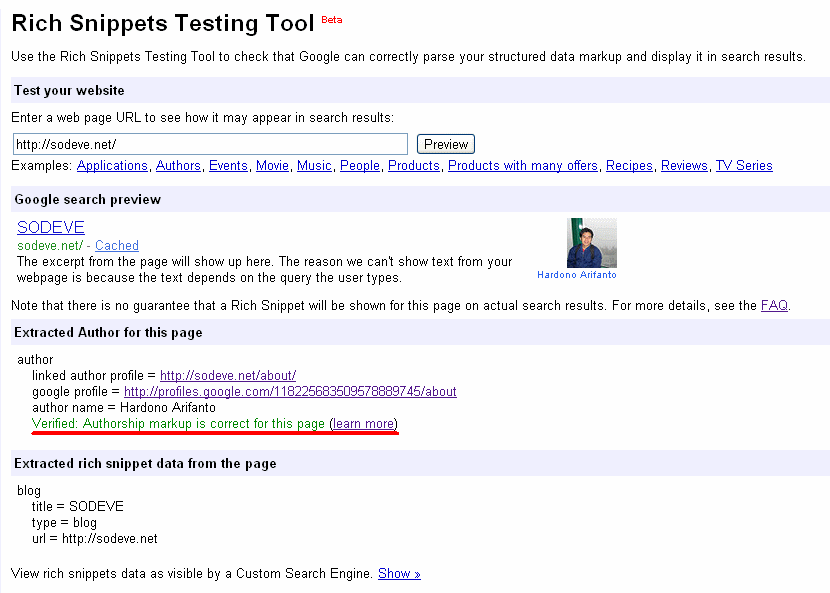
To ensure everything is working, you need to use Google’s Rich Snippets Testing Tool. Just enter any url from your WordPress site, and click Preview button. If everything OK, you should see your Google+ Profile name and picture shown.
5. Register Your Authorship Request

Filling up this FORM is the last and (maybe) the most important step.

Alright, I hope this post help you claim authorship in Google’s search result. Cheers!

References

  1. Scott Hanselman. Thanks for the headstart.
  2. Joost de Valk. Thanks for the detailed insight.
  3. Google, straight from the horse’s mouth

About Hardono

Howdy! I'm Hardono. I am working as a Software Developer. I am working mostly in Windows, dealing with .NET, conversing in C#. But I know a bit of Linux, mainly because I need to keep this blog operational. I've been working in Logistics/Transport industry for more than 11 years.

Possibly relevant:

VirtualBox is a powerful x86 and AMD64/Intel64 virtualization product for enterprise as well as home use. Not only is VirtualBox an extremely feature rich, high performance product for enterprise customers, it is also the only professional solution that is freely available as Open Source Software under the terms of the GNU General Public License (GPL) version 2.

Between VMWare Workstation and VirtualBox, I prefer the later. Mainly because it’s free :D. It’s also sufficient to my need, which is pretty basic. I want to have a mini environment with a number of different database servers to test my application at home.

Anyway, the installation is really straight forward. Just by clicking Next buttons and Yes buttons, I think you should get your VirtualBox up and running.

Here are the screen captures for your viewing pleasure.

[nggallery id=4]

About Hardono

Howdy! I'm Hardono. I am working as a Software Developer. I am working mostly in Windows, dealing with .NET, conversing in C#. But I know a bit of Linux, mainly because I need to keep this blog operational. I've been working in Logistics/Transport industry for more than 11 years.

Possibly relevant:

In a project that my team did recently, we build a web interface which receive inputs from a barcode scanner. Let’s focus to the textbox in which the scanning result will be entered.

When its content changed, textbox’s event handler will submit the value to backend process for validation. If valid, the textbox content will be cleared and a single beep sound will be played. If not, a triple beep sound will be played.

Apparently we had a quite challenge in implementing these single beep and triple beep sounds :D. So today I want to share what I have learned. When I googled for this topic, I found that there are at least three ways to do this. So I did made a simple HTML project, which you can download at the bottom of this article. I then tested each method using all major browsers (Firefox, Google Chrome, Internet Explorer 9, Opera and Safari).

The first two methods are utilizing plugins. IE will use Windows Media Player plugin, while the rest requires QuickTime plugin. Without these plugins, the first two methods won’t work.

1. Using EMBED tag.

<html>
   <head>
      <script type="text/javascript">
         function PlaySound(soundObj) {
           var sound = document.getElementById(soundObj);
           if (sound)
              sound.Play();
         }
      </script>
   </head>
   <body>
      <embed src="sounds/beep.wav" autostart="false" width="0" height="0" id="beep"
      enablejavascript="true">
      <embed src="sounds/beep3.wav" autostart="false" width="0" height="0" id="beep3"
      enablejavascript="true">
      <form>
         <input type="button" Value="Beep" onclick="PlaySound('beep')" />
         <input type="button" Value="3 Beeps" onclick="PlaySound('beep3')" />
      </form>
   </body>
</html>

Tested working on:

Surprisingly, it doesn’t work in current version Firefox (7.0.1). Once the page is loaded, Firefox simply barfed error message saying that the QuickTime plugin is crashed.

2. Using OBJECT tag.

<html>
   <head>
      <script type="text/javascript">
         function PlaySound(soundObj) {
           var sound = document.getElementById(soundObj);
           if (sound) {
               if (sound.object)
                  //IE needs this
                  sound.object.Play();
               else
                  sound.Play();
              }
         }
      </script>
   </head>
   <body>
      <object id="beep3" type="audio/wav" style="visibility:hidden;" data="sounds/beep3.wav">
         <param name="autostart" value="false" />
      </object>
      <object id="beep" type="audio/wav" style="visibility:hidden;" data="sounds/beep.wav">
         <param name="autostart" value="false" />
      </object>
      <form>
         <input type="button" Value="Beep" onclick="PlaySound('beep')" />
         <input type="button" Value="3 Beeps" onclick="PlaySound('beep3')" />
      </form>
   </body>
</html>

Tested working on:

This method doesn’t work on IE9. Surprisingly, I get random results when testing in IE9. Sometimes it hanged when it enters getElementById method. Some other times it gets “Access denied” error when accessing sound.object.Play().

3. Using AUDIO tag.

<html>
	<head>
		<script type="text/javascript">
         function PlaySound(soundObj) {
            var sound = document.getElementById(soundObj);
            if (sound)
               sound.play();
         }
      </script>
   </head>
   <body>
      <form>
         <button type="button" onclick="PlaySound('beep')">Beep</button>
         <button type="button" onclick="PlaySound('beep3')">Beep 3</button>
      </form>
      <audio src="sounds/beep3.wav"  id="beep3" />
      <audio src="sounds/beep.wav"  id="beep" />
   </body>
</html>

Audio tag seems to behave abnormally. When I put the audio tag above the form, nothing rendered in the page. Weird, right?
This method tested working on:

IE9 still not working. When I debug it, it able to return getElementById correctly. It’s just that the play() method does nothing.

Conclusion

Sadly, we are still unable to have one single solution that works in all major browsers. If we target various browsers, I suggest to use both AUDIO and EMBED tags. Then we select which element to play based on the browser type.

Btw, you can download the project files (html and wav files) HERE. Please test it yourself. I hope you get the same result as mine 😀 But if you don’t, please report your finding and let’s discuss it.

Alright, I hope it helps 😉 Cheers!

Reference:

  1. http://stackoverflow.com/questions/879152/how-do-i-make-javascript-beep
  2. http://html5doctor.com/native-audio-in-the-browser/

About Hardono

Howdy! I'm Hardono. I am working as a Software Developer. I am working mostly in Windows, dealing with .NET, conversing in C#. But I know a bit of Linux, mainly because I need to keep this blog operational. I've been working in Logistics/Transport industry for more than 11 years.

Possibly relevant: