browse by category or date

I was working on another feature of JSON Table Editor when I stumbled into this mess. The feature that I was working is ability to paste HTML/Excel onto the Grid. So naturally, I need to capture paste event.

After a few trials in Chrome and IE, I noticed that the implementation of paste event is inconsistent between Chrome and IE. Intrigued, I decided to do more test. The test that I’ve done was conducted in the following browsers:

  1. Google Chrome Version 24.0.1312.57 m
  2. Internet Explorer Version 10.0.9200.16439
  3. Firefox Version 18.0.2
  4. Opera Version 12.14 Build 1738
  5. Safari Version 5.1.7 (7534.57.2)

To debug the JavaScript, almost all browsers have their own debugging tools except Firefox.

  1. Google Chrome has Developer Tools that can be activated with Ctrl + Shift + I
  2. Internet Explorer’s Developer Tools can be activated using F12
  3. Firefox requires you to install Firebug to debug JavaScript.
  4. Opera’s developer tools is called DragonFly. Same as Google Chrome, it is also activated using Ctrl + Shift + I
  5. Safari’s developer tools is called Web Inspector. To activate it, click menu Develop → Show Web Inspector. We can also use Ctrl + Alt + I to activate it

The ExtJS code to capture the paste event:

Ext.onReady(function () {
   //....do other stuffs
   //....
   //handle paste event
   Ext.getBody().on('paste', function (evt, target) {
      var pastedText = "";
      if (Ext.isIE) {
         pastedText = window.clipboardData.getData('Text');
      }
      else if (Ext.isGecko) {
         //Sadly we can't retrieve data in Firefox
         pastedText = "";
      }
      else if (Ext.isOpera) {
         pastedText = evt.browserEvent.clipboardData.getData('text/plain');
      }
      else if (Ext.isWebKit) {
         //WebKit based browsers. i.e: Chrome, Safari
         pastedText = evt.browserEvent.clipboardData.getData('text/plain');
      }
      if (pastedText != "")
         Ext.MessageBox.alert('success', pastedText);
   });
   //....do other stuffs
   //....
}

Result

The result is somewhat surprising considering that the top 3 browsers are Chrome, IE and Firefox respectively.

Source: StatCounter Global Stats – Browser Market Share

So as expected, Google Chrome performed the best. The event handler is executed regardless on which element the paste action was done. The clipboard data also available for usage.

Internet Explorer and Firefox are somewhat disappointing. They execute the event handler only when the paste action was done in text input (textfield, textarea). And Firefox make it even worse by making the clipboard data unavailable for usage, unlike Internet Explorer.

Safari’s result is sort of expected since it uses the same layout engine as Google Chrome. But its Web Inspector is disappointing. It always crashed whenever I set breakpoints on above code and perform paste action. This is the only reason I put Ext.MessageBox.alert() in the test code above.

The surprise came from Opera. Although it is using different layout engine (Presto), it behaves similarly to Google Chrome. Has Opera silently replaced Presto with WebKit?

With above data, I think for now I will target the copy paste feature only for Chrome, Safari and Opera. I definitely need to use different approach for Internet Explorer and Firefox. But that maybe for another blog post in the future.

About Hardono

Howdy! I'm Hardono. I am working as a Software Developer. I am working mostly in Windows, dealing with .NET, conversing in C#. But I know a bit of Linux, mainly because I need to keep this blog operational. I've been working in Logistics/Transport industry for more than 11 years.

Possibly relevant:

In my recent post about JSON Table Editor, I listed reading CSV under feature to-do list. Working on it, I remember that I have blogged about reading CSV in the past.

So I ported the code from C# to JavaScript. The porting process is very much painless since C# and JavaScript has the same dialect. The JavaScript implementation is much simpler compared to C# because JavaScript is a dynamic language. You can compare the code side by side if you think I bluffed you :D.

Please understand that I wrote the C# implementation way back when I was only have Visual Studio 2005 in my workstation. So sadly, no anonymous object for me that time.

You could argue why complicated method is being used instead of just splitting the string using comma, but simple splitting won’t work when the CSV contains comma inside brackets.

Anyway, enjoy the code and have fun coding.

Cheers!

var CsvDataSource = {
   cleanQuotes : function (raw) {
	//Remove extra quotes/spaces in the beginning and end of string
	//Parse the string into Boolean or Number
      var str = raw;
      while (str.charAt(0) == '"' && str.charAt(str.length - 1) == '"')
         str = str.substr(1, str.length - 2);
		 
	  if (str.trim)
		str = str.trim();
		
      if (str == "true")
         return true;
      else if (str == "false")
         return false;
      else if (Number(str))
         return Number(str);
      else
         return str;
   },
   csvSplits : function (data, separatorChar) {
      //Split a string using the specified separator character. Will keep value between quotes
      //as a single value
      var me = CsvDataSource;
      var result = [];
      var lastpost = 0;
      var insideQuote = false;
      for (var i = 0; i < data.length; i++) {
         if (data.charAt(i) == separatorChar) {
            if (!insideQuote) {
               var str = me.cleanQuotes(data.substr(lastpost, i - lastpost));
               
               result.push(str);
               lastpost = i + 1;
            }
            
            if (i > 0 && i < data.length - 1) {
               if (data.charAt(i - 1) == '"' && insideQuote) {
                  var str = me.cleanQuotes(data.substr(lastpost, i - lastpost));
                  result.push(str);
                  lastpost = i + 1;
                  insideQuote = false;
               }
               if (data.charAt(i + 1) == '"' && !insideQuote)
                  insideQuote = true;
            }
         }
      }
      result.push(me.cleanQuotes(data.substr(lastpost)));
      return result;
   },
   readCSV : function (rawText, separatorChar) {
      var result = [];
      var lines = rawText.split('\n');
      for (var i = 0; i < lines.length; i++) {
         var line = lines[i];
         if (Ext.String.trim(line) != '') {
            var values = this.csvSplits(line, separatorChar);
            result.push(values);
         }
      }
      return result;
   }
}

Update 8th Feb 2013

  • Removed the opening and closing quotes in CSV values
  • Try to convert the String value into Boolean or Number, if failed, remains as a String

About Hardono

Howdy! I'm Hardono. I am working as a Software Developer. I am working mostly in Windows, dealing with .NET, conversing in C#. But I know a bit of Linux, mainly because I need to keep this blog operational. I've been working in Logistics/Transport industry for more than 11 years.

Possibly relevant:

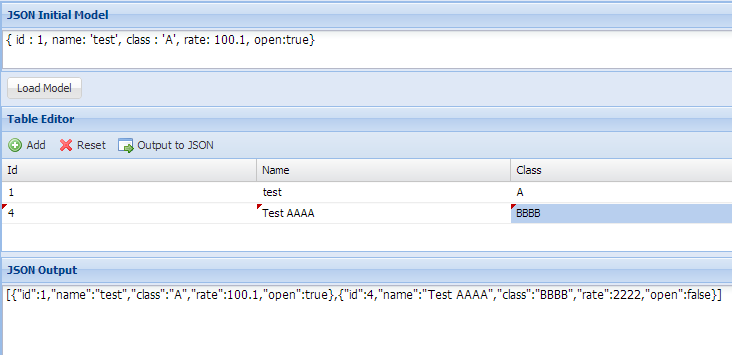
With so many JSON Editor tools available online, I still can’t find a decent editor with Grid interface.

So I decided to create my own. Considering my sloppy Sencha ExtJS knowledge, I conclude it should not be that difficult to implement with ExtJS. As a bonus, I can get my hand dirty with ExtJS 4.

Lo, and behold: JSON Table Editor.

json-table-editor

Features (previously was To-Do List)

  1. Ability to paste from HTML table/Excel Limited to WebKit browsers. Completed on 12nd Feb 2013
  2. Auto save Completed on 5th Feb 2013
  3. Duplicates a row Completed on 5th Feb 2013
  4. Deletes rows Completed on 5th Feb 2013
  5. Loads remote JSON Completed on 5th Feb 2013
  6. Loads CSV Completed on 5th Feb 2013
  7. Load JSON nested object-array Completed on 22nd Feb 2013
  8. Full support on Unicode characters Completed on 15 Apr 2016

How to Use JSON Table Editor

  1. Editing JSON/CSV
    1. Paste JSON/CSV text in the first textarea. Please note that for CSV, the first line will be used as column name.
    2. Click Load Model button. If failed, please fix the text to follow the correct JSON/CSV format. Note that you could change the default CSV separator character in the narrow textbox before the ‘Load JSON’ button.
    3. Add new record, or edit existing one in the Table Editor grid
    4. Click Output to JSON button to get the final JSON array object
  2. Editing Remote JSON/CSV
    1. Type the URL of JSON/CSV in the textbox below the first text area.
    2. Click Load Model button. If failed, edit the JSON/CSV top text area, clear the URL, then click ‘Load JSON’ button. If you didn’t clear the URL textbox, it will always try retrieve the file and ignore your modified version.
  3. Paste values from HTML/Excel
    1. Currently, the paste action is only available in Chrome, Safari and Opera. For now, only single column values is accepted.
    2. The values will be separated by newline character.
    3. Please ensure you select the appropriate Paste method before pasting.
    4. In Insert mode (Overwrite checkbox is unchecked), multiple copies of the selected row will be inserted below it. The number of copies will depend on the number of pasted values. These row copies will then have their corresponding column updated with the pasted value.
    5. In Overwrite mode , the values of the current cell and any cells below it will replaced. If the number of pasted values exceed the last row, Insert mode will be applied to the last row using the remaining pasted values
    6. To paste values, select the cell. Then press Ctrl+V
  4. Editing complex JSON object
    Complex object here is referring to any other JavaScript type that is not Number, Boolean, String and Date. Imagine you have the following JSON that you want to edit (using John Bevilaqua‘s data)

    {
       'nodes' : {
          'grm155r61a105ke15d' : {
             'requests' : [{
                   'id' : '8985DEED-F7FA-4985-A709-2795BCB6A134',
                   'name' : 'GRM155R61A105KE15D',
                   'request' : {
                      'protocol' : 'HTTP',
                      'method' : {
                         'name' : 'GET',
                         'request-body' : false
                      },
                      'url' : 'www.findchips.com/ref/GRM155R61A105KE15D',
                      'body-type' : 'Text',
                      'headers-type' : 'Form',
                      'url-assist' : false
                   },
                   'modified' : 'Wed, 27 Feb 2013 13:57:59 -0500'
                }, {
                   'id' : '505AFB4F-9311-4261-B33B-8806B3325B6E',
                   'name' : 'GRM155R61A105KE15D oemstrade',
                   'request' : {
                      'protocol' : 'HTTP',
                      'method' : {
                         'name' : 'GET',
                         'request-body' : false
                      },
                      'url' : 'oemstrade.com/search/GRM31CR61E106KA12L/',
                      'body-type' : 'Text',
                      'headers-type' : 'Form',
                      'url-assist' : false
                   },
                   'modified' : 'Wed, 27 Feb 2013 14:52:04 -0500'
                }, {
                   'id' : 'D916947E-DA7C-4D73-8F67-91BF826E8A92',
                   'name' : 'GRM155R61A105KE15D EEM.COM',
                   'request' : {
                      'protocol' : 'HTTP',
                      'method' : {
                         'name' : 'GET',
                         'request-body' : false
                      },
                      'url' : 'www.eem.com/search/GRM155R61A105KE15D',
                      'body-type' : 'Text',
                      'headers-type' : 'Form',
                      'url-assist' : false
                   },
                   'modified' : 'Wed, 27 Feb 2013 14:58:35 -0500'
                }
             ]
          }
       },
       'version' : 1,
       'modified' : 'Wed, 27 Feb 2013 14:58:35 -0500'
    }
    
    1. Any complex object will shown as Grid (Grid icon) in the table
    2. Clicking the Grid icon will open a new page where each object’s property will be used as column
    3. You can check at which level you are from the Window’s title. Any child window will have “child-” in its title.
    4. If you edit anything in a child window, the changes will be reflected to its parent only after you clicked the “Save to Upper Level” button.
    5. If you decided to close the window before saving, a dialog will ask for your confirmation.

Feature Request

  1. Elijahu : Loading non-linear JSON (each record has different field). Completed on 27th Dec 2013 link
  2. Will Baumbach: Should be able to fetch JSON stored in location which use self-signed certificate
  3. Joe Garfield: Can’t import larger datasets. Unclear how to change data types of columns
  4. Carlin Scott: Export to Excel
  5. Konstantin Portnov: When handling unicode, the unicode characters shown as escape characters Completed on 15 Apr 2016 link

Do you have any other suggestions of functionality that would improve JSON Table Editor? Did you spot any bugs?

About Hardono

Howdy! I'm Hardono. I am working as a Software Developer. I am working mostly in Windows, dealing with .NET, conversing in C#. But I know a bit of Linux, mainly because I need to keep this blog operational. I've been working in Logistics/Transport industry for more than 11 years.

Possibly relevant: