browse by category or date

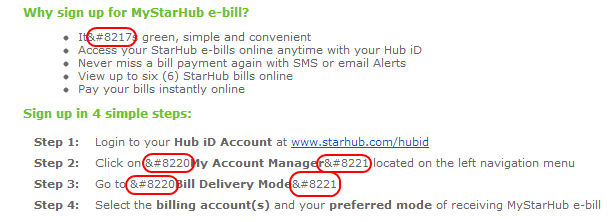
Today I received an email from StarHub telling me that now I can now opt-in to receive my bill in my email instead of copy. Well done StarHub, you are now going green. Which is awesome considering green is the main color in your corporate logo. Although you are late doing this compared to DBS, but still, let me tip my hat for this effort.

So anyway, I login to Hub ID website.
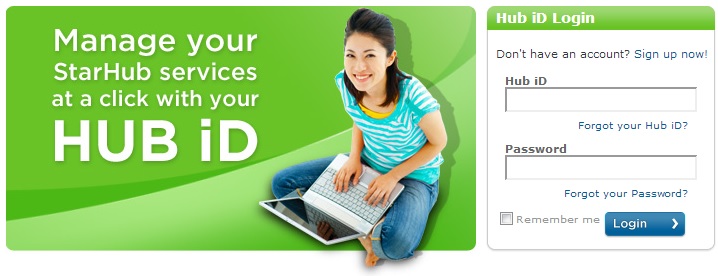
Then I click the My Account Manager menu on the left:

WRONG!!! Although it looks like a clickable item, it is not. Even if it doesn’t open a new page, I expected the menu header will act as a collapse/expand control. But it does none of them, yet still disguising itself as a clickable item.

Anyway, I clicked the “Link to My Account Manager” and it opens up a new page. As instructed in the email, I clicked “Bill Delivery Mode” menu.

Thank God it works! Since I am currently receiving hard copy, I changed it to receive the bill in my email address.

I then clicked NEXT button. Ugh, it seems I need to confirm this.
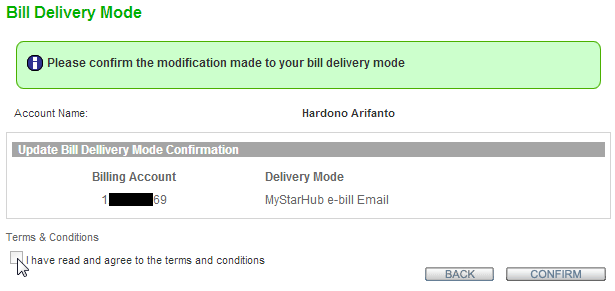
Alright, I’ll just assume that the T&C is reasonable. TLDR; anyways! I’ll just check this checkbox. Darn it! I can’t check the checkbox. It seems StarHub wants me to read the long and boring T&C. Okay StarHub, maybe you’re right. Maybe I should read the T&C. So I clicked the “Terms & Conditions” link.
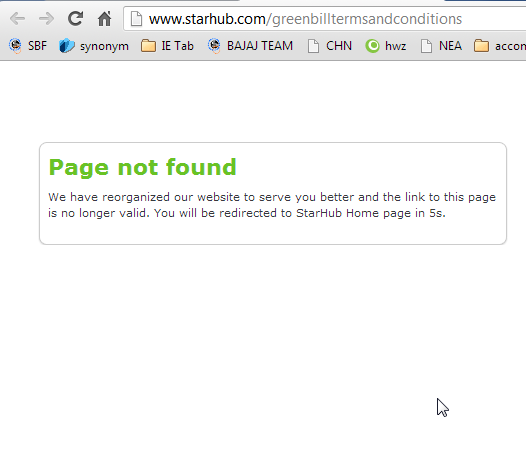
Duudeee!!! This is just plain rude. You asked me to read the T&C, but you don’t have the T&C. Never mind that, at least now I can check the checkbox.
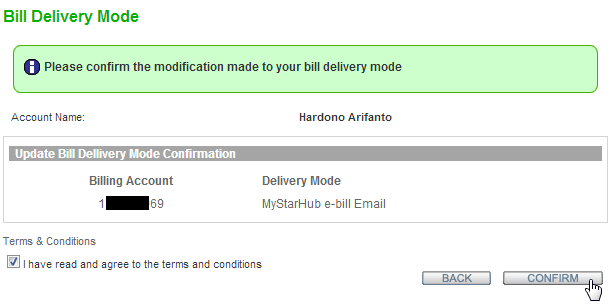
I then clicked the CONFIRM button. Everything looks OK, except when I checked my Bill Delivery Mode. It still reflected as Hard Copy :facepalm:

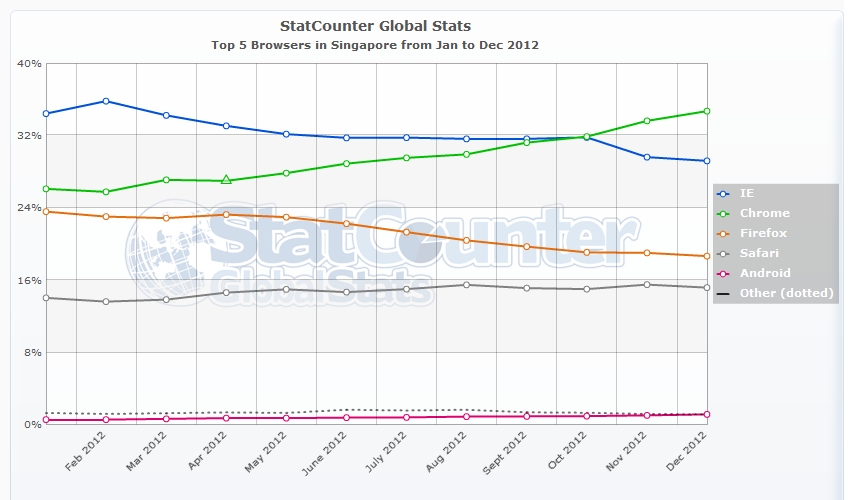
I am using Google Chrome. Don’t tell me you only test your website in IE 8? Come on StarHub, Chrome is the new browser king in Singapore.
Solution

Alright, enough ranting, let’s provide solutions.

  1. A better CSS selectors & styles to ensure a non clickable item doesn’t look clickable
  2. Test before deploying to production
  3. I’m sorry what? You have tested it? Test more please. Also, test in all popular browsers.
  4. Examine the deployment method. It seems you have a bug here
  5. Test your email before sending to customer. What I circled below is unacceptable.

Alright, that’s all from me. Happy New Year StarHub, I hope you’ll be better in the new year. Lastly,

😀

Update 3rd Jan 2013

Starhub has fixed this bug! Cheers Starhub! 🙂

About Hardono

Howdy! I'm Hardono. I am working as a Software Developer. I am working mostly in Windows, dealing with .NET, conversing in C#. But I know a bit of Linux, mainly because I need to keep this blog operational. I've been working in Logistics/Transport industry for more than 11 years.

Possibly relevant:

In Visio 2010, the default connection point is Inward. Despite my recent findings on Visio, I can’t find any method to change the default connection point to In-Out. Facing this kind of situation, we can always rely on Macro to help our cause.

First, let’s enable the Developer Mode. Without this, we can’t add our macro codes. Click File → Options → Advanced, then scroll all the way down.

After we clicked OK, we can press Alt-F11 to open the Visual Basic editor. Double-click ThisDocument to active the source code editor, then paste below code:

Sub ConnectPtsAllInOut()
    'Enable diagram services
    Dim DiagramServices As Integer
    DiagramServices = ActiveDocument.DiagramServicesEnabled
    ActiveDocument.DiagramServicesEnabled = visServiceVersion140

    Dim UndoScopeID1 As Long
    UndoScopeID1 = Application.BeginUndoScope("Inward and Outward")
    Dim vsoRow1 As Visio.Row
    Dim ctr, ctr2 As Integer
    Dim Sections As Object
    'Array starts from 1
    For ctr = 1 To Application.ActiveWindow.Page.Shapes.Count
        'Ensure the Shape has connection points Array
        On Error Resume Next
        Set Sections = Application.ActiveWindow.Page.Shapes(ctr).Section(visSectionConnectionPts)
        If Err.Number = 0 Then
            'Inconsistently, now array starts from 0
            For ctr2 = 0 To Application.ActiveWindow.Page.Shapes(ctr).Section(visSectionConnectionPts).Count - 1
                Set vsoRow1 = Application.ActiveWindow.Page.Shapes(ctr).Section(visSectionConnectionPts).Row(ctr2)
                vsoRow1.Cell(visCnnctType).FormulaU = visCnnctTypeInwardOutward
            Next
        End If
    Next
    
    Application.EndUndoScope UndoScopeID1, True

    'Restore diagram services
    ActiveDocument.DiagramServicesEnabled = DiagramServices
End Sub

I hope it helps. Cheers!

About Hardono

Howdy! I'm Hardono. I am working as a Software Developer. I am working mostly in Windows, dealing with .NET, conversing in C#. But I know a bit of Linux, mainly because I need to keep this blog operational. I've been working in Logistics/Transport industry for more than 11 years.

Possibly relevant:

This past week I have been busy creating many Data-Flow-Diagram in Microsoft Visio 2010. One major annoyance that I found was I can’t set the curved connectors as the default connector. It was very frustrating to change every individual connectors to a curved one.

Luckily, I accidentally found the solution today! Here’s how:

  1. In your Ribbons, go to Design Tab
  2. Click the Connectors button, select Curved lines

That’s it! Now, everytime you draw a connector, it will be a curved connector. Unfortunately, you need to repeat above steps when you open new/different document.

I hope it helps. Cheers!

About Hardono

Howdy! I'm Hardono. I am working as a Software Developer. I am working mostly in Windows, dealing with .NET, conversing in C#. But I know a bit of Linux, mainly because I need to keep this blog operational. I've been working in Logistics/Transport industry for more than 11 years.

Possibly relevant: