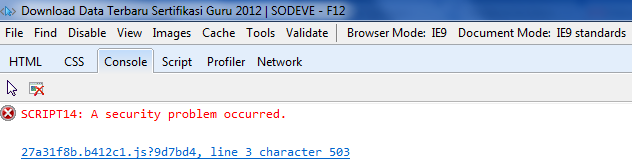
I was testing this blog’s most popular page’s load-speed in Internet Explorer 9 when I realized that the JavaScript execution was stopped half-way. To found out what went wrong, I quickly pressed F12 key to open Developer Tools then I hit F5 key to reload the page.
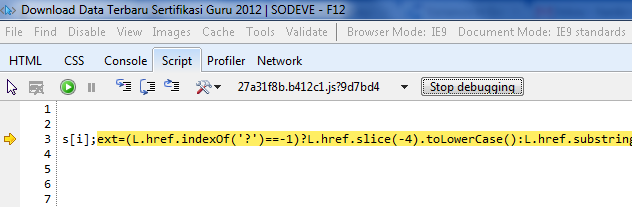
Hmm.. interesting. The error says “A security problem occurred“. To dig deeper, I switched to Script tab and clicked “Start Debugging” button. It reloaded the page and shown me where exactly the error triggered.
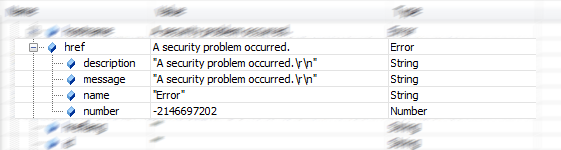
So I added variable L to watch:
Hmm.. interesting, apparently there is a security blockade that prevented JavaScript accessing the value of href of L object. So I followed the steps to troubleshoot script errors in Internet Explorer:
Method 1: Disable script debugging
Method 2: Test a webpage from another user account, browser, or computer
Method 3: Verify that Active Scripting, ActiveX, and Java are not being blocked by Internet Explorer
Method 4: Remove all temporary Internet files
Method 5: Install the latest service pack and software updates for Internet Explorer
Method 6: Resolve script errors when you try to print from Internet Explorer
But it was a completely useless 🙁
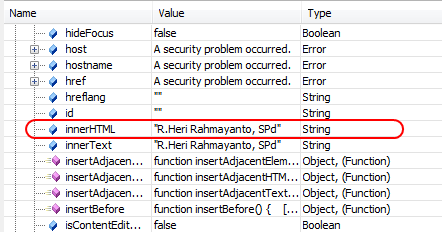
So I opened other pages in my blog and voila, no JavaScript error. It means something special on that page break the JavaScript parser!!!. So I returned to that page and took a closer look.
So I search the HTML source code for R.Heri Rahmayanto and found this:
Yeah that’s right. IT WAS ALL CAUSED BY INVALID URL ADDRESS!!!
So now we know how to totally ruin the JavaScript experience for Internet Explorer users 👿
Note: I’m using Internet Explorer 9 with standard settings.
About Hardono
Howdy! I'm Hardono. I am working as a Software Developer. I am working mostly in Windows, dealing with .NET, conversing in C#. But I know a bit of Linux, mainly because I need to keep this blog operational. I've been working in Logistics/Transport industry for more than 11 years.
Around three weeks ago, GoDaddy (where I was hosting this blog) suffered a downtime. Although they’re back online within 48 hours, something bad had happened to shared server that hosted my blog. I don’t really know the details, but I only know the outcome. This blog become super slow, intermittently spitted out timeout error, and frequently crashed (I need to terminate the web process from Hosting Control Panel). Being a good customer, I raised ticket and gave them chance to resolve this problem. But after two weeks with no improvement, my patience ran out. So I spent last week moving out this blog to Amazon EC2.
Why Amazon EC2? I can’t really elaborate why. But I can say that it’s a weird logic combination of:
The Amazon brand
I’ve seen many cool projects are hosted in Amazon EC2
Free tier usage!!
Learn something new 😀
Using few guides that I found on the Net, I managed to achieved the setup that I want. It wasn’t a smooth sailing though. In the end, I learned something new and now I write this guide hopefully will get you on a smooth sailing migrating your WordPress blog from GoDaddy to Amazon EC2.
Alright, let’s get dirty!!
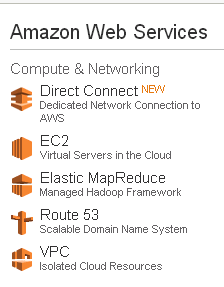
After you login to your Amazon Web Service account, you’ll have something like below. Click EC2.
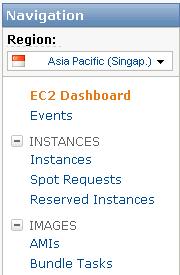
Now on your left screen you’ll have something like this:
You might need to change the location of your data center. For me, I changed it to Asia Pacific (Singapore) because majority of my blog readers come from this region.
Next, click Instance.
Then, click Launch Instance button. You will be prompted with 3 choices:
Classic Wizard: You will be required to configure in details your EC2 instance.
Quick Launch Wizard: You can choose from a number of commonly used OS + Software setup.
AWS Marketplace: You’ll have myriads of setups available to choose. These setups already come with the prepackaged software.
For now, let’s just select Quick Launch Wizard and pick Ubuntu Server 11.10.
Before we can continue, we need to give name to our instance. We also need to create a new Key Pair and download the Key Pair. We are going to need Key Pair to establish SSH connection later on.
When you clicked the download button, you’ll receive a [Name].pem. In my example, it’s wpkey.pem. What to do now is to click the Continue button. After that, we will have the summary screen detailing our setup.
Next, click Launch button to have our instance running.
Assign IP Address
By default, our instance will only have internal IP. To make the instance have an external IP. We need to use Elastic IP. On the EC2 Navigation Panel, click Elastic IPs:
Click Allocate New Address button
Click Yes, Allocate. After a while, we will see the new IP Address in the table. Select the row, then click Associate Address button.
That’s it for now. Let’s continue to the next topic about establishing SSH Connection.
There are many tools that enables you to have SSH session with your EC2 instance. But I won’t review them all here, I’ll just discuss my choice of tools. Which are:
PuttyGen: This tool is used to generate private key from previously downloaded Key-Pair file (e.g. wpkey.pem)
Putty: This tool is used to establish SSH connection.
FileZilla: This tool is an FTP client that capable connecting to SFTP protocol
Putty and PuttyGen can be downloaded HERE. Filezilla’s download page is HERE.
Generate Private Key
Run PuttyGen:
Click Load button, select the .pem file.
Change the Number of bits in a generated key to 2048. Click the Save private key button and name the file wpkey.ppk
Establish SSH Connection
Run Putty:
Go to Connection -> SSH -> Auth. We need to set the Private key for authentication with the .ppk file that we generate before. Click browse, and find the file. After that go to Session
Set the Hostname (or IP address) with the IP address obtained in previous page. Or you could use the Public DNS value shown in your Instance detail. Leave the default value (22) for Port. Under the Saved Session, give name to this connection (e.g. ec2), then click Save. Finally, click Open to initiate connection.
Putty will prompted you whether this connection can be trusted:
Click Yes. To login, use ubuntu as username.
Congratulations! You are now connected to your Ubuntu server through SSH.
Establish SFTP Connection
Run FileZilla, go to Edit -> Settings. In the Settings window, go to Connection -> SFTP. Press Add keyfile button. Select the same .ppk file as the one used by Putty.
Next, go to Sites Manager. Add connection to your instance by following configuration similar to below and save it for future usage.
Alright, so far so good. We now can connect to our instance and transfer files. Next, let’s start configuring our server for WordPress.
Next, let’s modify /etc/php5/fpm/php.ini. Append the following text:
[apc]
apc.write_lock = 1
apc.slam_defense = 0
Lastly, let’s modify /etc/php5/fpm/pool.d/www.conf. Match the content with below configuration:
user = nginx
group = nginx
listen = /dev/shm/php-fpm-www.sock
listen.owner = nginx
listen.group = nginx
listen.mode = 0666
Let’s now restart the service
service php5-fpm restart
To install Nginx, we will follow the installation guide found HERE.
First, we will download the Nginx signing key and add it to the apt program keyring
cd /tmp
wget http://nginx.org/keys/nginx_signing.key
apt-key add nginx_signing.key
# Route all requests for non-existent files to index.php
location / {
	try_files $uri $uri/ /index.php$is_args$args;
}

# Pass PHP scripts to php-fastcgi listening on port 9000
location ~ \.php$ {

	# Zero-day exploit defense.
	# http://forum.nginx.org/read.php?2,88845,page=3
	# Won't work properly (404 error) if the file is not stored on
	# this server,  which is entirely possible with php-fpm/php-fcgi.
	# Comment the 'try_files' line out if you set up php-fpm/php-fcgi
	# on another machine.  And then cross your fingers that you won't get hacked.
	try_files $uri =404;

	include fastcgi_params;

	# Keep these parameters for compatibility with old PHP scripts using them.
	fastcgi_param PATH_INFO $fastcgi_path_info;
	fastcgi_param PATH_TRANSLATED $document_root$fastcgi_path_info;
	fastcgi_param SCRIPT_FILENAME $document_root$fastcgi_script_name;

	# Some default config
	fastcgi_connect_timeout        20;
	fastcgi_send_timeout          180;
	fastcgi_read_timeout          180;
	fastcgi_buffer_size          128k;
	fastcgi_buffers            4 256k;
	fastcgi_busy_buffers_size    256k;
	fastcgi_temp_file_write_size 256k;
	fastcgi_intercept_errors    on;
	fastcgi_ignore_client_abort off;
	fastcgi_pass unix:/dev/shm/php-fpm-www.sock;

}
# PHP search for file Exploit:
# The PHP regex location block fires instead of the try_files block. Therefore we need
# to add "try_files $uri =404;" to make sure that "/uploads/virusimage.jpg/hello.php"
# never executes the hidden php code inside virusimage.jpg because it can't find hello.php!
# The exploit also can be stopped by adding "cgi.fix_pathinfo = 0" in your php.ini file.
Now, let’s create a specific configuration file for our site (e.g. /etc/nginx/available-sites/mysite.conf). You need to change every word sodeve.net found below into the name of your blog URL.
server {
	listen 80;
	server_name www.sodeve.net sodeve.net;
	root /var/www/sodeve.net/public;
	index index.html index.htm index.php;

	access_log  /var/www/sodeve.net/access.log;
	error_log  /var/www/sodeve.net/error.log;

	# Directives to send expires headers and turn off 404 error logging.
	location ~* \.(js|css|png|jpg|jpeg|gif|ico)$ {
		expires max;
		log_not_found off;
		access_log off;
	}

	location = /favicon.ico {
		log_not_found off;
		access_log off;
	}

	location = /robots.txt {
		allow all;
		log_not_found off;
		access_log off;
	}

	## Disable viewing .htaccess & .htpassword
	location ~ /\. { deny  all; access_log off; log_not_found off; }

	include /etc/nginx/php.conf;
	#Download
	#rewrite ^/downloadz/(.*)$ /wp-content/plugins/download-monitor/download.php?id=$1 last;

	# BEGIN W3TC Minify cache
location ~ /wp-content/w3tc/min.*\.js$ {
    types {}
    default_type application/x-javascript;
    expires modified 31536000s;
    add_header X-Powered-By "W3 Total Cache/0.9.2.4";
    add_header Vary "Accept-Encoding";
    add_header Pragma "public";
    add_header Cache-Control "max-age=31536000, public, must-revalidate, proxy-revalidate";
}
location ~ /wp-content/w3tc/min.*\.css$ {
    types {}
    default_type text/css;
    expires modified 31536000s;
    add_header X-Powered-By "W3 Total Cache/0.9.2.4";
    add_header Vary "Accept-Encoding";
    add_header Pragma "public";
    add_header Cache-Control "max-age=31536000, public, must-revalidate, proxy-revalidate";
}
location ~ /wp-content/w3tc/min.*js\.gzip$ {
    gzip off;
    types {}
    default_type application/x-javascript;
    expires modified 31536000s;
    add_header X-Powered-By "W3 Total Cache/0.9.2.4";
    add_header Vary "Accept-Encoding";
    add_header Pragma "public";
    add_header Cache-Control "max-age=31536000, public, must-revalidate, proxy-revalidate";
    add_header Content-Encoding gzip;
}
location ~ /wp-content/w3tc/min.*css\.gzip$ {
    gzip off;
    types {}
    default_type text/css;
    expires modified 31536000s;
    add_header X-Powered-By "W3 Total Cache/0.9.2.4";
    add_header Vary "Accept-Encoding";
    add_header Pragma "public";
    add_header Cache-Control "max-age=31536000, public, must-revalidate, proxy-revalidate";
    add_header Content-Encoding gzip;
}
# END W3TC Minify cache
	# BEGIN W3TC Page Cache cache
location ~ /wp-content/w3tc/pgcache.*html$ {
    expires modified 3600s;
    add_header X-Powered-By "W3 Total Cache/0.9.2.4";
    add_header Vary "Accept-Encoding, Cookie";
    add_header Pragma "public";
    add_header Cache-Control "max-age=3600, public, must-revalidate, proxy-revalidate";
}
location ~ /wp-content/w3tc/pgcache.*gzip$ {
    gzip off;
    types {}
    default_type text/html;
    expires modified 3600s;
    add_header X-Powered-By "W3 Total Cache/0.9.2.4";
    add_header Vary "Accept-Encoding, Cookie";
    add_header Pragma "public";
    add_header Cache-Control "max-age=3600, public, must-revalidate, proxy-revalidate";
    add_header Content-Encoding gzip;
}
# END W3TC Page Cache cache
	# BEGIN W3TC Browser Cache
gzip on;
gzip_types text/css application/x-javascript text/x-component text/richtext image/svg+xml text/plain text/xsd text/xsl text/xml image/x-icon;
location ~ \.(css|js|htc)$ {
    expires 31536000s;
    add_header Pragma "public";
    add_header Cache-Control "max-age=31536000, public, must-revalidate, proxy-revalidate";
    add_header X-Powered-By "W3 Total Cache/0.9.2.4";
}
location ~ \.(html|htm|rtf|rtx|svg|svgz|txt|xsd|xsl|xml)$ {
    expires 3600s;
    add_header Pragma "public";
    add_header Cache-Control "max-age=3600, public, must-revalidate, proxy-revalidate";
    add_header X-Powered-By "W3 Total Cache/0.9.2.4";
}
location ~ \.(asf|asx|wax|wmv|wmx|avi|bmp|class|divx|doc|docx|eot|exe|gif|gz|gzip|ico|jpg|jpeg|jpe|mdb|mid|midi|mov|qt|mp3|m4a|mp4|m4v|mpeg|mpg|mpe|mpp|otf|odb|odc|odf|odg|odp|ods|odt|ogg|pdf|png|pot|pps|ppt|pptx|ra|ram|svg|svgz|swf|tar|tif|tiff|ttf|ttc|wav|wma|wri|xla|xls|xlsx|xlt|xlw|zip)$ {
    expires 31536000s;
    add_header Pragma "public";
    add_header Cache-Control "max-age=31536000, public, must-revalidate, proxy-revalidate";
    add_header X-Powered-By "W3 Total Cache/0.9.2.4";
}
# END W3TC Browser Cache
	# BEGIN W3TC Minify core
rewrite ^/wp-content/w3tc/min/w3tc_rewrite_test$ /wp-content/w3tc/min/index.php?w3tc_rewrite_test=1 last;
set $w3tc_enc "";
if ($http_accept_encoding ~ gzip) {
    set $w3tc_enc .gzip;
}
if (-f $request_filename$w3tc_enc) {
    rewrite (.*) $1$w3tc_enc break;
}
rewrite ^/wp-content/w3tc/min/(.+\.(css|js))$ /wp-content/w3tc/min/index.php?file=$1 last;
# END W3TC Minify core
	# BEGIN W3TC Page Cache core
rewrite ^(.*\/)?w3tc_rewrite_test$ $1?w3tc_rewrite_test=1 last;
set $w3tc_rewrite 1;
if ($request_method = POST) {
    set $w3tc_rewrite 0;
}
if ($query_string != "") {
    set $w3tc_rewrite 0;
}
if ($http_host != "sodeve.net") {
    set $w3tc_rewrite 0;
}
set $w3tc_rewrite2 1;
if ($request_uri !~ \/$) {
    set $w3tc_rewrite2 0;
}
if ($request_uri ~* "(sitemap(_index)?\.xml(\.gz)?|[a-z0-9_\-]+-sitemap([0-9]+)?\.xml(\.gz)?)") {
    set $w3tc_rewrite2 1;
}
if ($w3tc_rewrite2 != 1) {
    set $w3tc_rewrite 0;
}
set $w3tc_rewrite3 1;
if ($request_uri ~* "(\/wp-admin\/|\/xmlrpc.php|\/wp-(app|cron|login|register|mail)\.php|wp-.*\.php|index\.php|download.php|securimage.php)") {
    set $w3tc_rewrite3 0;
}
if ($request_uri ~* "(wp\-comments\-popup\.php|wp\-links\-opml\.php|wp\-locations\.php)") {
    set $w3tc_rewrite3 1;
}
if ($w3tc_rewrite3 != 1) {
    set $w3tc_rewrite 0;
}
if ($http_cookie ~* "(comment_author|wp\-postpass|wordpress_\[a\-f0\-9\]\+|wordpress_logged_in)") {
    set $w3tc_rewrite 0;
}
if ($http_user_agent ~* "(W3\ Total\ Cache/0\.9\.2\.4)") {
    set $w3tc_rewrite 0;
}
set $w3tc_ua "";
set $w3tc_ref "";
set $w3tc_ssl "";
set $w3tc_enc "";
if ($http_accept_encoding ~ gzip) {
    set $w3tc_enc _gzip;
}
set $w3tc_ext "";
if (-f "$document_root/wp-content/w3tc/pgcache/$request_uri/_index$w3tc_ua$w3tc_ref$w3tc_ssl.html$w3tc_enc") {
    set $w3tc_ext .html;
}
if (-f "$document_root/wp-content/w3tc/pgcache/$request_uri/_index$w3tc_ua$w3tc_ref$w3tc_ssl.xml$w3tc_enc") {
    set $w3tc_ext .xml;
}
if ($w3tc_ext = "") {
  set $w3tc_rewrite 0;
}
if ($w3tc_rewrite = 1) {
    rewrite .* "/wp-content/w3tc/pgcache/$request_uri/_index$w3tc_ua$w3tc_ref$w3tc_ssl$w3tc_ext$w3tc_enc" last;
}
# END W3TC Page Cache core
	# BEGIN W3TC Skip 404 error handling by WordPress for static files
if (-f $request_filename) {
    break;
}
if (-d $request_filename) {
    break;
}
if ($request_uri ~ "(robots\.txt|sitemap(_index)?\.xml(\.gz)?|[a-z0-9_\-]+-sitemap([0-9]+)?\.xml(\.gz)?)") {
    break;
}
if ($request_uri ~* \.(css|js|htc|html|htm|rtf|rtx|svg|svgz|txt|xsd|xsl|xml|asf|asx|wax|wmv|wmx|avi|bmp|class|divx|doc|docx|eot|exe|gif|gz|gzip|ico|jpg|jpeg|jpe|mdb|mid|midi|mov|qt|mp3|m4a|mp4|m4v|mpeg|mpg|mpe|mpp|otf|odb|odc|odf|odg|odp|ods|odt|ogg|pdf|png|pot|pps|ppt|pptx|ra|ram|svg|svgz|swf|tar|tif|tiff|ttf|ttc|wav|wma|wri|xla|xls|xlsx|xlt|xlw|zip)$) {
    return 404;
}
# END W3TC Skip 404 error handling by WordPress for static files
}
Alright, we’re almost done. What’s left now is just migrating our existing existing WordPress files from GoDaddy to our new EC2 instance.
To migrate WordPress, we basically need to do two things:
Migrate MySQL Database
Migrate WordPress files
Change DNS Record
Migrate MySQL Database
First, let’s backup the DB. The easiest way to do this is using WP-DB Manager. Install this extension first if you don’t have it.
Once you backup it, use FileZilla to retrive the backup file. Because we are going to import the .sql file to database we created in step 4, it important to add this at the beginning of the file:
use wordpress;
Save the .sql file and then transfer it to our EC2 instance (put it in /tmp/ folder).
Now, in Putty, let’s import the backup file into MySQL.
mysql -u wp_user -p < /tmp/1348812291_-_wordpress.sql
Migrate WordPress files
First let’s create the directory to store the WordPress files
Now we can copy all files from the old WordPress site at GoDaddy’s into our EC2 instance
Change DNS Record
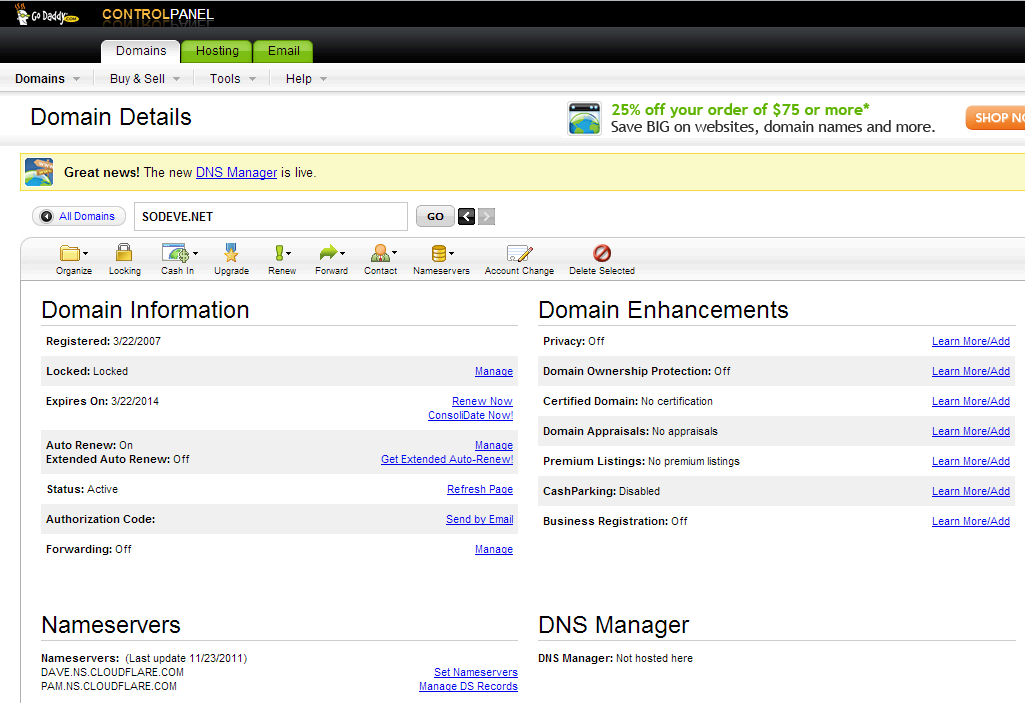
To host our DNS we need to move our NameServers address to CloudFlare’s NameServers. First, login to your GoDaddy Domain Control Panel.
Click Set Nameservers and change the name servers to:
DAVE.NS.CLOUDFLARE.COM
PAM.NS.CLOUDFLARE.COM
Setting up DNS in CloudFlare is really simple so I’ll give it a pass. 😀
Alright, that’s basically all you need to do to migrate your blog from GoDaddy’s shared host to Amazon EC2.
I hope it helps. If you encountered problem following this example, please drop a comment or two below.
Cheers!
About Hardono
Howdy! I'm Hardono. I am working as a Software Developer. I am working mostly in Windows, dealing with .NET, conversing in C#. But I know a bit of Linux, mainly because I need to keep this blog operational. I've been working in Logistics/Transport industry for more than 11 years.
Today I found out a secret. We were travelling to DHL Warehouse at Alps Avenue when it was happened. As we are driving along Changi Coast Road, my colleague started to accelerate to around 80 KM/h. If I remember correctly, the speed limit on that stretch of road is 70 KM/h. Mind you that Changi Coast Road is a long straight road next to Changi Airport’s runaway. So it’s very easy to get tempted to over speed.
Then we saw it. Almost every cars that driving in the opposite direction signaled us with their high-beam light. It took us 2-3 cars before we notice their signal. Our first thought was we ran over something, and that something is stuck in front of the car. So my friend immediately pressed the hazard-sign light and slowed down. We stopped and get out of the car and checked the front side of the car. Hmm… weird, nothing is stuck there.
So we continue to drive. Not more than 100 meters from where we stopped, we found out the truth. There was Traffic Police officers conducting speed check! We saw one car already kena pulled over.
Instantly we all laughed realizing that the signals were meant “Slow down, there’s traffic Mata ahead”.
Of course I’m not advocating over speeding. The rules in Singapore is clear. If the speed limit is 60 KM/h, you can speed at most 69 KM/h. If your speed is 10-19 KM/h above the speed limit and kena, you’ll receive warning letters (three times at most, then they’ll summon you to court). If your speed is more than 19 KM/h above the speed limit and kena, you’ll need to pay a visit to court.
Drive/ride safely folks!
Changi Coast Road
About Hardono
Howdy! I'm Hardono. I am working as a Software Developer. I am working mostly in Windows, dealing with .NET, conversing in C#. But I know a bit of Linux, mainly because I need to keep this blog operational. I've been working in Logistics/Transport industry for more than 11 years.